 TreeSimplifier
 TreeSimplifier guide
Getting started
- Install TreeSimplifier from the download page and start it.
- Open the Settings tab. Under PioSolver engine, select the PioSolver solver engine program (not PioViewer), for example
C:\PioSolver\PioSolver3-edge.exe, then Save settings. TreeSimplifier starts it briefly to confirm it is PioSolver 3.10 or later and that it is activated. - In the TreeSimplifier License panel, click Register beta license. The license is active immediately and the red notice at the top of the window disappears.
Tabs
| Tab | Use it to | When |
|---|---|---|
| Settings | Select your PioSolver, register the license, install the PioViewer plugin. | First, once. |
| Flop Pruning | Simplify flop decisions in one solution or a whole folder. | Start here. |
| Turn Pruning | Simplify turn decisions on every runout. | On any solution, or on the results of flop pruning. |
| Transpose Nodelocks | Carry the simplified strategy back onto your original solutions. | After turn pruning. |
| Convert Saves | Re-save older .cfr files in the compressed 3.10 format. Nothing is solved. | Any time, for old saves. |
| Job Queue | Run, order, edit and duplicate jobs. | After adding jobs. |
| Progress | Follow the running job, pause or stop it. | While jobs run. |
Flop pruning
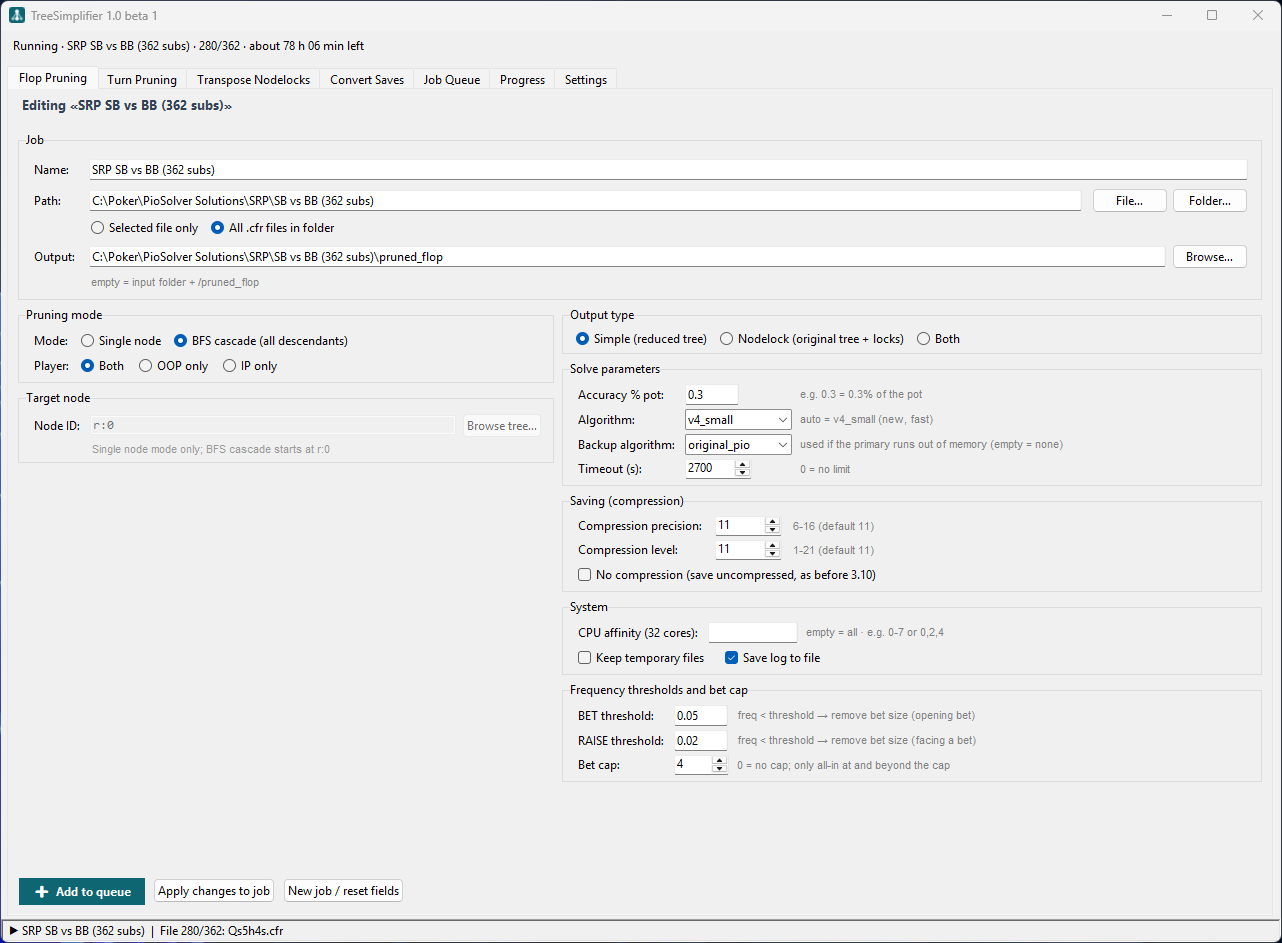
How a node is decided
At every flop node it visits, TreeSimplifier goes through four steps:
- It reads how often each bet size is used at the node.
- It removes the sizes used less often than your threshold, before any solving.
- For each remaining size, it builds a tree with only that size and solves it to your target accuracy.
- It keeps the size with the highest EV for the player acting, and saves the reduced tree, the locked original, or both.
A node with a single size and nothing removed is left as it is: there is nothing to decide. If every size is removed, the node becomes check-only.
Pruning mode
- Single node prunes only the node in Target node.
- BFS cascade (all descendants) starts at
r:0and visits every flop decision below it, level by level. Each node is decided on the tree already simplified above it, so later decisions reflect earlier ones.
Where results go
With Output left empty, results go to a pruned_flop folder next to your input, with pruned_flop_simple and pruned_flop_nodelock inside, and a log folder. Files already present in the output are skipped, so a stopped job can simply be run again.
Settings
| Setting | Default | What it does |
|---|---|---|
| Path | — | A .cfr file (File…) or a folder (Folder…). |
| Selected file only / All .cfr files | All | Whether to process one file or every .cfr in the folder. |
| Output | …/pruned_flop | Folder for results. Empty uses pruned_flop next to the input. |
| Mode | BFS cascade | Single node or cascade, above. |
| Player | Both | Prune only the nodes where OOP acts, where IP acts, or both. Nodes of the other player are left untouched. |
| Target node | r:0 | Single node mode only. A PioSolver node ID such as r:0:c:b50: c is a check or call, b50 a bet or raise to 50 chips. Browse tree… opens a navigator to pick it. |
| Output type | Simple | Simple saves the reduced tree with only the winning sizes, re-solved. Nodelock keeps your original tree with every size, locks it to the simplified strategy and solves it to accuracy. Both produces the two from one run. |
| Accuracy % pot | 0.3 | Target exploitability for every solve, as a percentage of the pot, as in PioSolver: 0.3 is 0.3% of the pot. |
| Algorithm | auto | The PioSolver solving algorithm: auto (the same as v4_small), v4_small, v4_large, pio_cfr or original_pio. |
| Backup algorithm | original_pio | Used only when the primary algorithm runs out of memory. Empty for none. |
| Timeout (s) | 0 | Upper limit per solve (0 = no limit). |
| Compression precision / level | 11 / 11 | Settings of the compressed save format introduced in PioSolver 3.10: precision 6–16, level 1–21. They trade file size against saving time. |
| No compression | off | Saves uncompressed, as before PioSolver 3.10. |
| CPU affinity | empty | Cores the solver may use: empty for all, or 0-7, 0,2,4. |
| Keep temporary files | off | Keeps the per-size trees solved during the comparison. |
| Save log to file | on | Writes the job log to the output's log folder. |
| BET threshold | 0.05 | Betting sizes used less than 5% are removed. |
| RAISE threshold | 0.02 | Raise sizes facing a bet used less than 2% are removed. |
| Bet cap | 4 | At this bet/raise level on the flop only all-in remains (0 = no cap). Turn sizes are never capped. |
Turn pruning
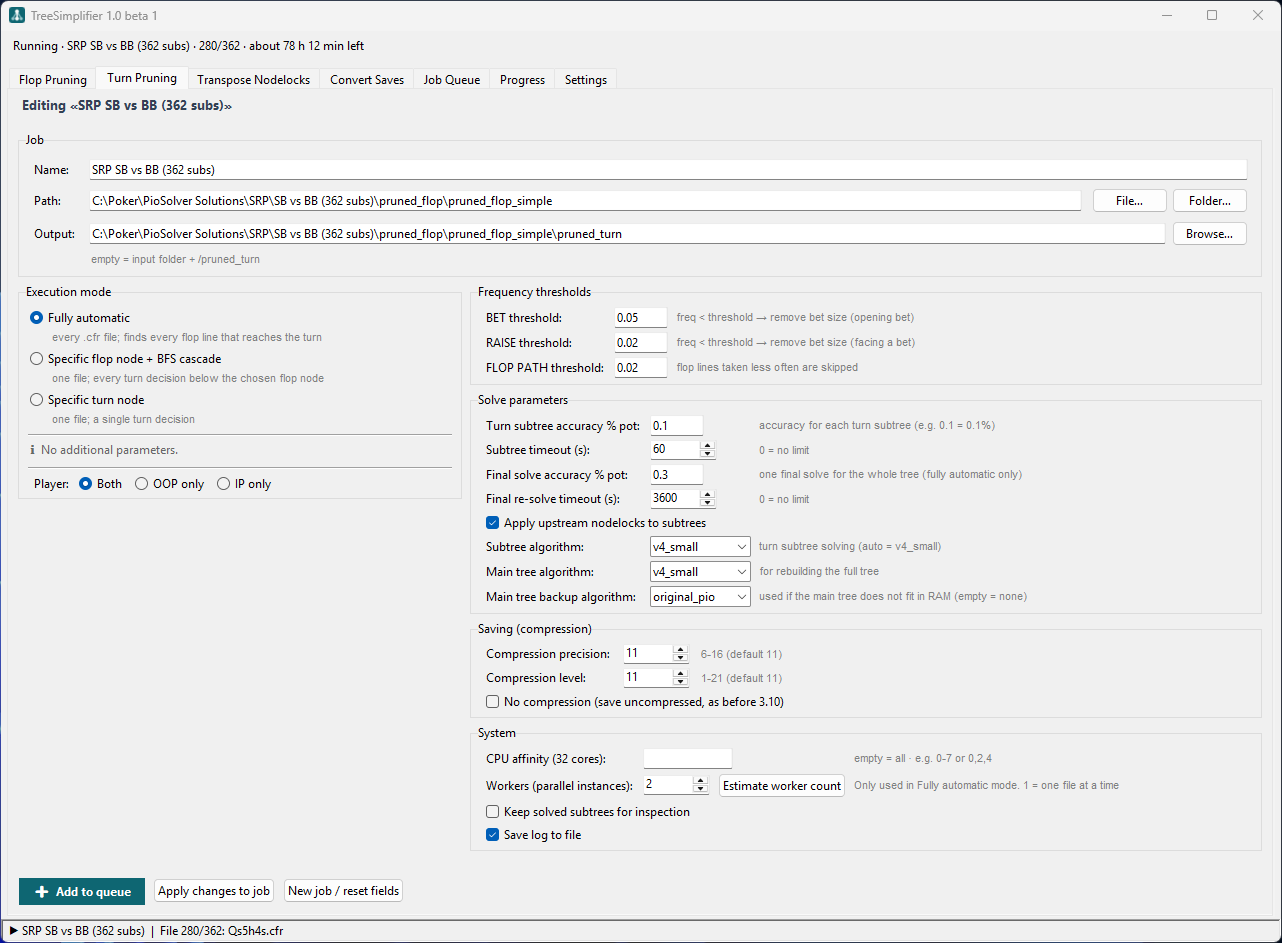
Simplifies turn decisions on every runout. Each turn subtree is extracted and solved in a second PioSolver instance, the candidate sizes are compared there, and the winning strategy is locked into the full tree. Results go to pruned_turn next to your input unless you choose another folder.
Execution modes
| Mode | Scope |
|---|---|
| Fully automatic | Every .cfr in a folder. Finds every flop line that reaches the turn, then prunes every turn node of those lines, on every runout. |
| Specific flop node + BFS cascade | One file, one flop line, every turn decision below it. Optionally one turn card, such as Qs (empty for all runouts). |
| Specific turn node | One file, one turn decision, on all runouts or on a single card. |
In Fully automatic mode the flop strategy is locked once the turn decisions are locked, and one final solve of the whole tree is run at the Final solve accuracy. The flop nodes are not re-solved around the new turn strategy.
Settings
| Setting | Default | What it does |
|---|---|---|
| Path / Output | …/pruned_turn | A .cfr file or a folder. Empty output uses pruned_turn next to the input. |
| Player | Both | Prune only the nodes where OOP acts, where IP acts, or both. |
| BET / RAISE threshold | 0.05 / 0.02 | Turn betting sizes used less than 5%, and raise sizes facing a bet used less than 2%, are removed before solving. |
| FLOP PATH threshold | 0.02 | Flop lines taken less often than this are skipped: their range is too thin to be worth pruning. |
| Turn subtree accuracy % pot | 0.1 | Accuracy for each subtree solve. |
| Subtree timeout (s) | 60 | Limit per subtree solve (0 = none). |
| Final solve accuracy % pot | 0.3 | The single final solve of the whole tree (fully automatic only). |
| Final re-solve timeout (s) | 0 | Limit for that final solve (0 = none). |
| Apply upstream nodelocks to subtrees | on | A subtree starts at the turn card. When the node being pruned comes later in the turn, for example IP's decision after OOP checks, the turn decisions before it may already be nodelocked in the full tree, by an earlier step of the cascade or by you. This option copies those nodelocks into the subtree, so the node is reached with the same ranges as in the full tree and the sizes are compared on the play that will really happen. Turned off, the subtree re-solves those earlier decisions freely and its EVs can differ from the full tree. |
| Subtree algorithm | auto | Algorithm for turn subtrees, with the same choices as in Flop pruning. |
| Main tree algorithm / backup | auto / original_pio | Algorithm for the full tree, and the fallback if it does not fit in memory. |
| Compression / No compression | 11 / 11, off | As in Flop pruning. |
| CPU affinity | empty | As in Flop pruning. |
| Workers | 1 | Parallel solver instances, each working on its own files. Only used in Fully automatic mode. With 1, files are processed one at a time. Estimate worker count samples your files and recommends a number for the RAM currently free. |
| Keep solved subtrees for inspection | off | Keeps every solved subtree in subtree_debug_<board>. Warning: this can write a very large number of files and use a lot of disk space. |
| Save log to file | on | Writes the job log next to the results. |
Transpose nodelocks
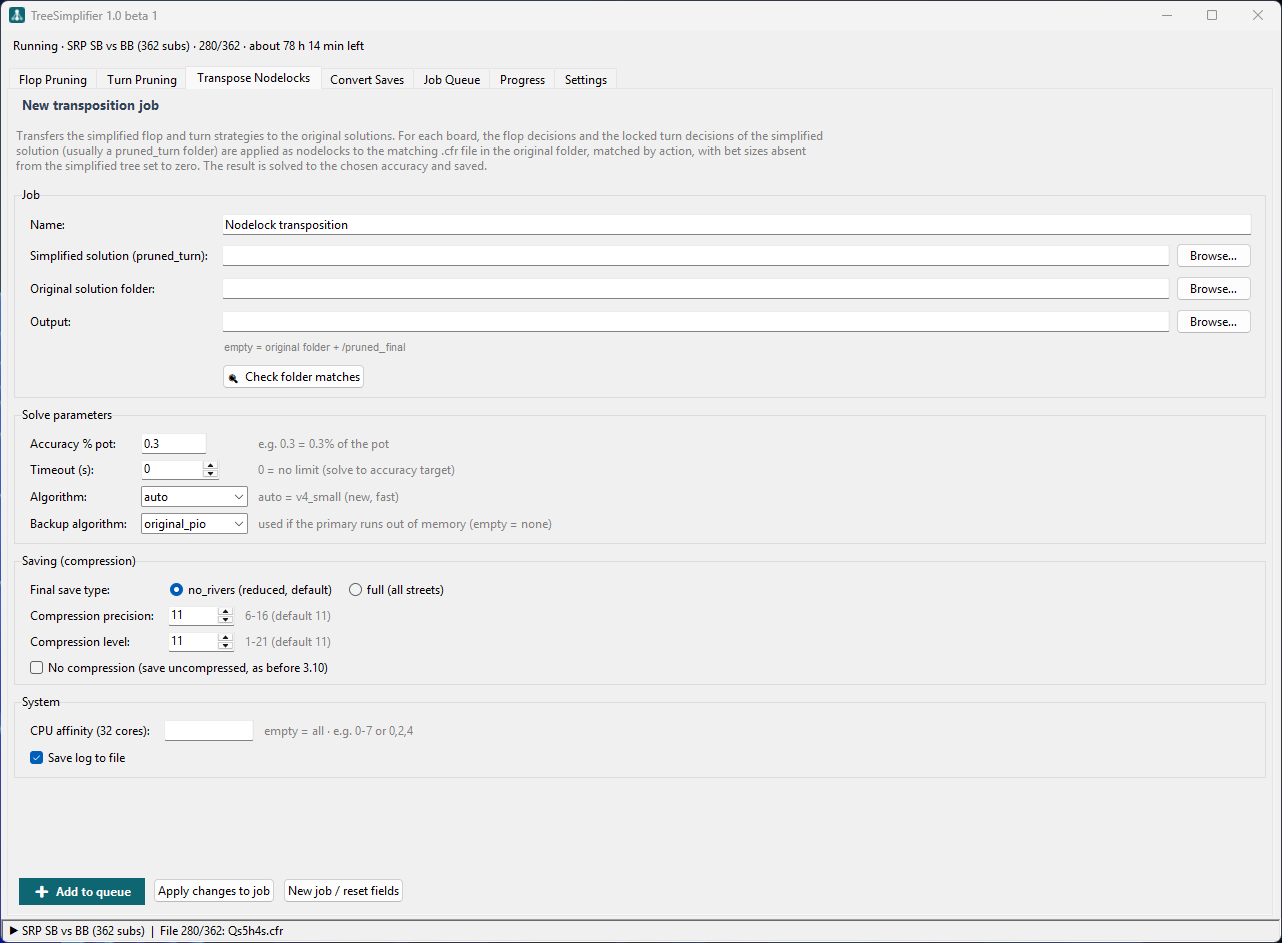
Moves the simplified strategy back onto the original solutions. For each board it reads every flop decision and every locked turn decision from the simplified solution, applies them as nodelocks to the matching file in the original folder, then solves to the chosen accuracy and saves. Decisions are matched by action, and sizes absent from the simplified tree are set to zero frequency.
- Select the Simplified solution folder (usually a
pruned_turnfolder). - Select the Original solution folder.
- Click Check folder matches to see which boards pair up before you queue anything.
- Leave Output empty to write to
pruned_finalin the original folder.
Convert saves
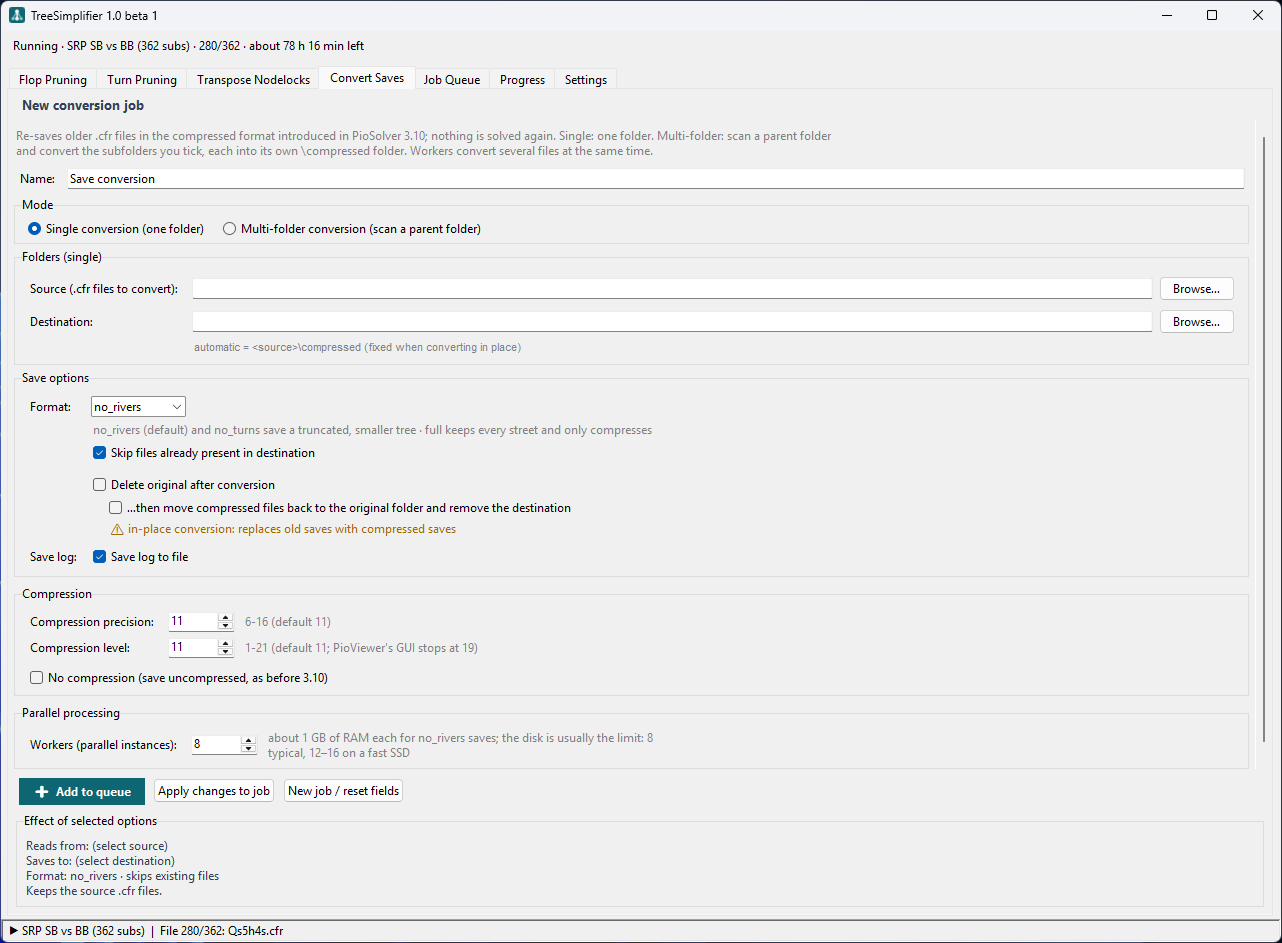
Re-saves older .cfr files in the compressed PioSolver 3.10 format. Nothing is solved: each file is loaded and saved again.
- Single conversion: one source folder. The destination defaults to
<source>\compressed. - Multi-folder conversion: choose a parent folder and Scan folders. Every subfolder with
.cfrfiles is listed with its file count: tick the ones to convert. Each is written to its owncompressedfolder.
| Setting | Default | What it does |
|---|---|---|
| Format | no_rivers | no_rivers and no_turns save a truncated, smaller tree. full keeps every street and only compresses. |
| Skip files already present | on | Lets an interrupted conversion continue where it stopped. |
| Delete original after conversion | off | Removes each source file once its converted copy is saved. |
| …then move compressed files back | off | With the option above, converts in place: the compressed files replace the originals and the destination is removed. |
| Workers | 8 | Parallel solver instances. About 1 GB of RAM each for no_rivers. The disk is usually the limit. 12–16 on a fast SSD. |
With both delete and move-back ticked, the old saves are gone once each file is converted. Try it on a copy first.
Job queue
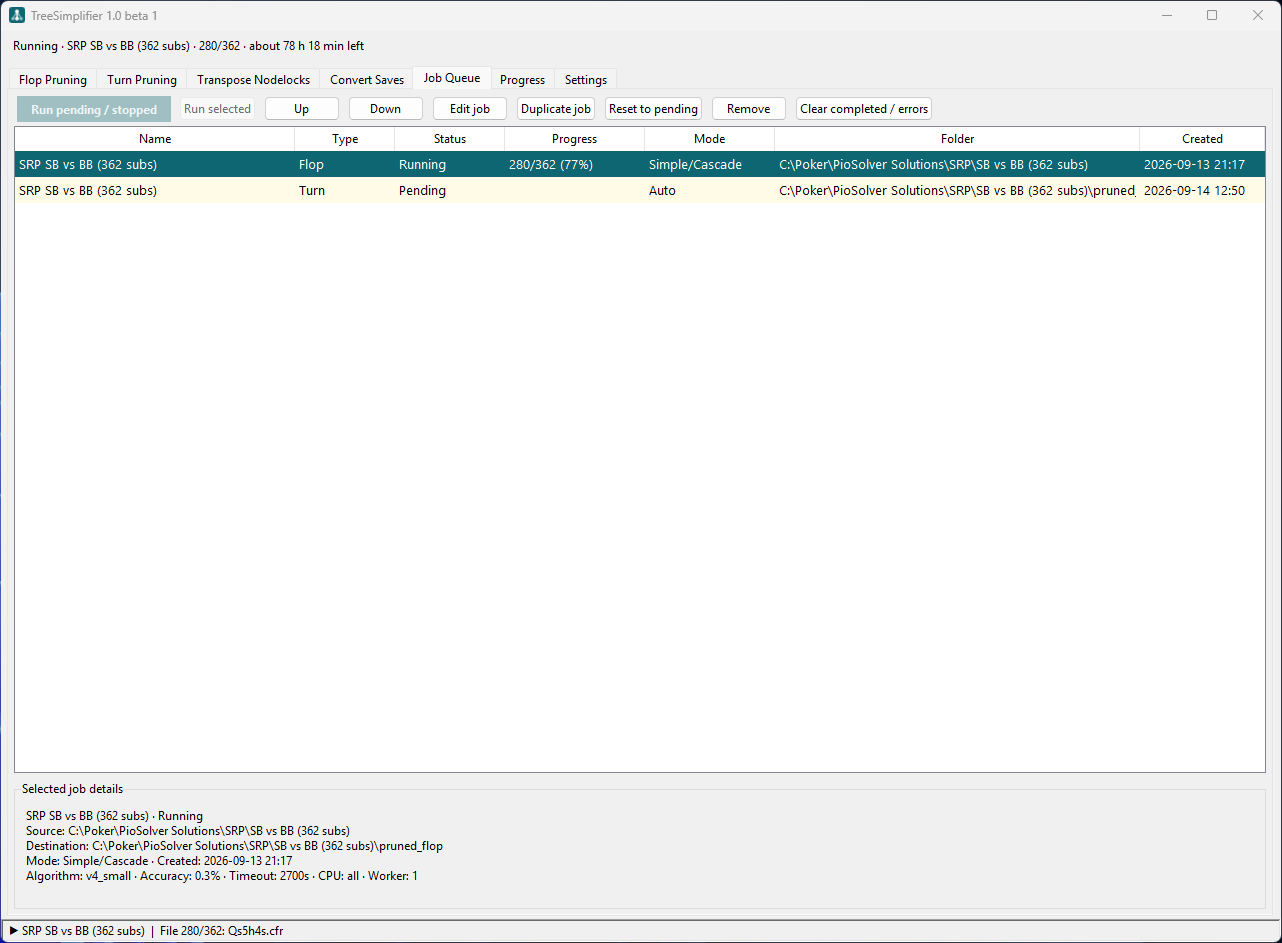
All job types share one queue and run in order, one at a time. Each row shows the job's name, type, status, progress with its percentage, mode, the folder it works on and when it was created.
Select several jobs with Ctrl-click or Shift-click: Run selected, Reset to pending, Duplicate job, Remove, Up and Down then act on all of them.
| Button | What it does |
|---|---|
| Run pending / stopped | Runs every job not yet completed. |
| Run selected | Runs the selected jobs, in queue order. |
| Up / Down | Changes the order. |
| Edit job | Opens the job in its tab. Change the fields, then click Apply changes to job. |
| Duplicate job | Copies jobs, for example to run the same settings on another folder. |
| Reset to pending | Queues finished or failed jobs again. |
| Remove / Clear completed / errors | Tidies the list. Result files are not touched. |
Right-click a job for the same actions and to open its folders: Open source folder, Open results folder and Open log folder. A folder the job has not created yet is reported instead of opened.
The Selected job details panel shows every setting of the selected job. The queue is saved automatically after every change and restored when the app starts.
Progress, pause and stop
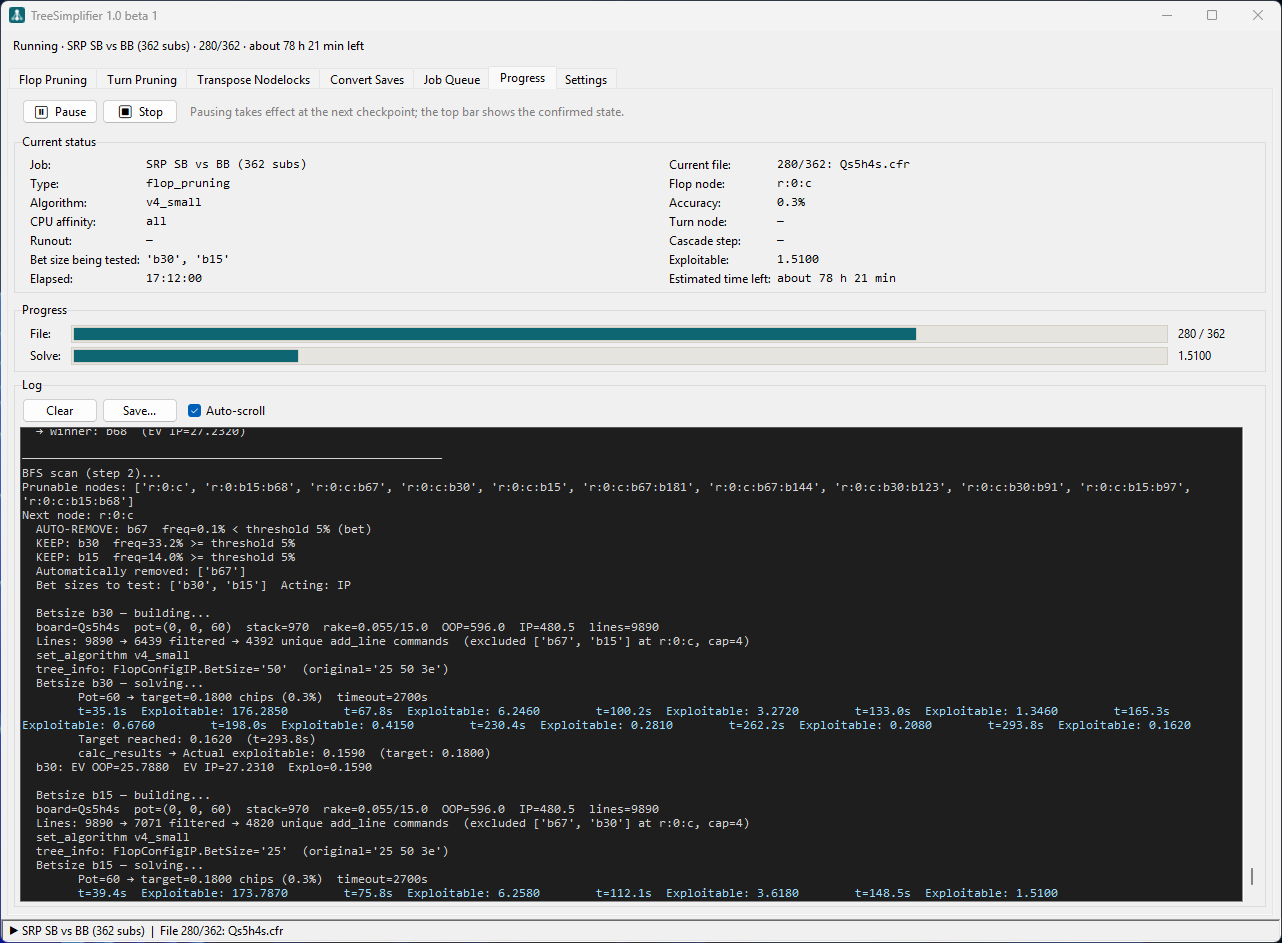
The Progress tab shows the job and file being worked on, the node and bet size being tested, the current exploitability, the elapsed time, and the live log. Use Save… to keep the log. Progress bars appear for the counters the running job actually uses: files always, then flop nodes, runouts and turn nodes as the job reaches them, and the solve bar for every job that solves.
- Estimated time left appears after the first file that takes real work, and is repeated in the bar at the top of the window. Files skipped because their output already exists are left out of the calculation. It is an estimate: boards differ in size.
- Pause and Stop are in this tab. Pause takes effect at the next safe checkpoint, and the bar at the top confirms when the job is actually paused. Resume continues from there.
- Stop ends the job. A file being saved is always finished first. Run the job again later: completed outputs are skipped.
- When the whole queue finishes, TreeSimplifier plays a sound, flashes its taskbar button if the window is in the background, and shows a summary such as 2 completed, 1 with errors. Stopping the queue yourself shows nothing.
PioViewer plugin
The PioViewer plugin lets you prune the turn or river node you are looking at in PioViewer.
Install and connect
- In Settings, make sure the PioSolver executable is the one PioViewer uses, then click Install Tree_Simplifier Plugin in PioViewer.
- Restart PioViewer. A menu appears.
- Choose .
- Close and reopen PioViewer, then open or solve your tree as usual.
Prune a node
Select a turn or river decision node, then choose:
| Menu | What it does |
|---|---|
| Tree Pruning → 1 Size Optimal | Tests every size at this node on this runout and locks the one with the highest EV for the player acting. |
| Tree Pruning → 2 Size Optimal | Tests every pair of sizes and locks the best pair. Nodes with two sizes or fewer are skipped. |
| Tree Pruning - all runouts → … | The same, repeated for the same action line on every card of that street. |
Flop nodes are not pruned from PioViewer: use the Flop pruning tab. Subtree accuracy follows PioViewer's own turn and river recalculation accuracy settings.
Plugin settings
In Settings → Relay pruning parameters: bet and raise thresholds (default 0, keep every size), the subtree solve timeout (default 60 s), whether to save the relay log in Tree_Simplifier_logs next to PioSolver (on by default) and whether to keep temporary subtrees. They apply from the next command, with no need to reconnect. Open log folder opens Tree_Simplifier_logs.
Settings
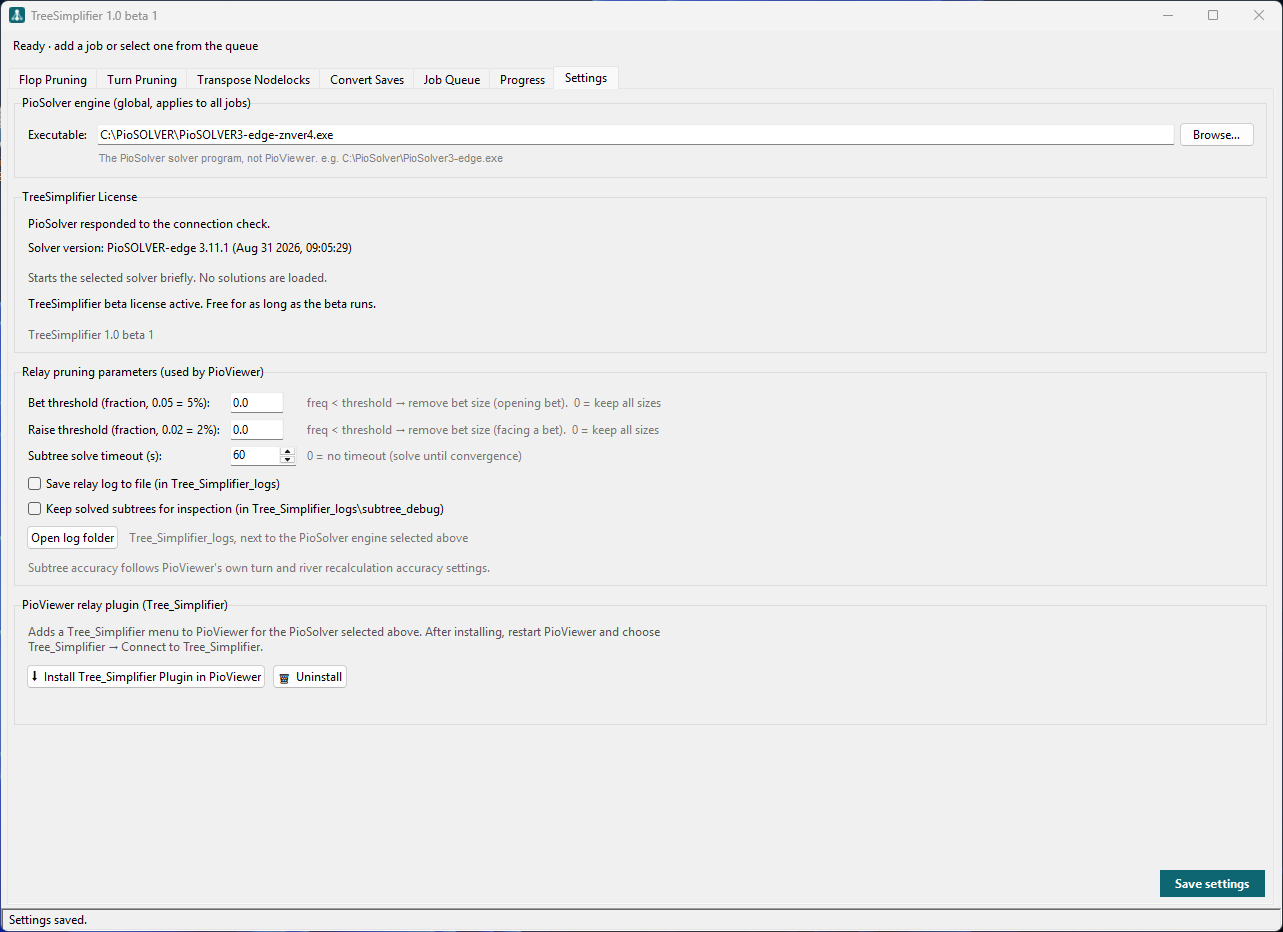
- PioSolver engine is the PioSolver solver engine program, not PioViewer, and applies to every job and to the plugin. Each time it changes, TreeSimplifier starts it once to check its release and activation. If that check fails, Retry connection check appears.
- TreeSimplifier License shows the license state and its actions. See License.
- Relay pruning parameters and the plugin buttons are described in PioViewer plugin.
License
TreeSimplifier is tied to your PioSolver license: as long as you have access to that license, you have access to TreeSimplifier.